
In the modern digital age, short-form video content dominates the social media landscape. Platforms like TikTok, Instagram Reels, YouTube Shorts, and Facebook Stories demand visually engaging, fast-paced, and high-quality multimedia to capture short audience attention spans. Standing firmly at the peak of mobile content creation is CapCut: Photo & Video Editor. Developed by ByteDance (the parent company of TikTok), CapCut has evolved from a simple video trimming utility into a full-fledged, multi-track multimedia creation power suite on mobile devices, tablets, and desktop computers. In this comprehensive, in-depth review, we will analyze CapCut's editing capabilities, integrated AI suite, photo tools, pricing model, pros, cons, and performance to help you determine if it is the ideal editing tool for your workflow.
Introduction to CapCut and Its Market Dominance
CapCut was initially released to serve a clear market demand: an intuitive, full-featured mobile video editor capable of producing trend-ready content for short-form video platforms. Before CapCut, mobile editing was often split between overly complex professional ports that required high learning curves or overly simplified apps that placed intrusive watermarks on exported projects. CapCut bridged this gap by delivering desktop-grade features inside a streamlined mobile interface.
Today, CapCut serves hundreds of millions of daily active users worldwide. Its integration with viral social media trends, extensive sound effect library, automated template ecosystem, and advanced artificial intelligence tools have made it the industry standard for digital storytellers, small business marketers, social media influencers, and casual video editors alike.
Core Features of CapCut’s Mobile Video Editor
At its core, CapCut excels at fundamental timeline editing. The app utilizes a highly responsive multi-track timeline interface that allows creators to stack video clips, overlay images (PIP/Picture-in-Picture), insert text layers, apply audio channels, and attach sound effects with pixel-precise control.
Essential editing utilities within the basic timeline include:
- Precision Trimming and Splitting: Slice video tracks smoothly down to individual frames to remove dead air, unwanted pauses, or bad takes effortlessly.
- Speed Control and Curve Adjustment: Speed up clips up to 100x or slow them down down to 0.1x. CapCut's dynamic Speed Curves feature lets users create cinematic velocity edits (ramp-ups and slow-mo drops) synchronized perfectly to audio beats.
- Aspect Ratio Adjustments: Convert horizontal 16:9 video footage into vertical 9:16, square 1:1, or 4:5 aspect ratios instantly with smart canvas background options like color fills, blurred backgrounds, or custom patterns.
- Transition and Filter Library: Access thousands of built-in transitions—including 3D flips, light leaks, glitches, and zoombased movements—to connect scenes smoothly without external plugins.
Advanced Editing Suite: Keyframes, Optical Flow, and Masking
What truly elevates CapCut above ordinary mobile video editors is its inclusion of professional-tier manipulation tools that were once exclusive to premium desktop software like Adobe Premiere Pro or Final Cut Pro.
Key advanced tools include:
- Keyframe Animation: Virtually any property within CapCut—including scale, position, rotation, opacity, and color filters—can be animated across time using keyframes. This allows creators to build custom motion graphics, dynamic zooms, and floating visual elements without leaving the app.
- Optical Flow Smooth Slow-Motion: Simple speed reductions often produce stuttery video frames. CapCut's optical flow technology uses interpolation algorithms to generate synthetic intermediate frames, creating buttery-smooth 60fps or 120fps ultra-slow-motion sequences from standard frame-rate clips.
- Chroma Key and Green Screen Removal: Isolate specific colors from video backgrounds to overlay subjects into completely virtual sets or animated backgrounds seamlessly.
- Video Stabilization: Fix shaky handheld footage or mobile camera blur with an intelligent stabilization algorithm that crops and balances video movement in real-time.
- Multi-Track Masking: Apply rectangle, circle, split, or custom shape masks to blend multiple video clips together, craft clone effects, or reveal hidden layers dynamically.
AI-Powered Innovations: Captions, Background Removal, and Voice Cloning
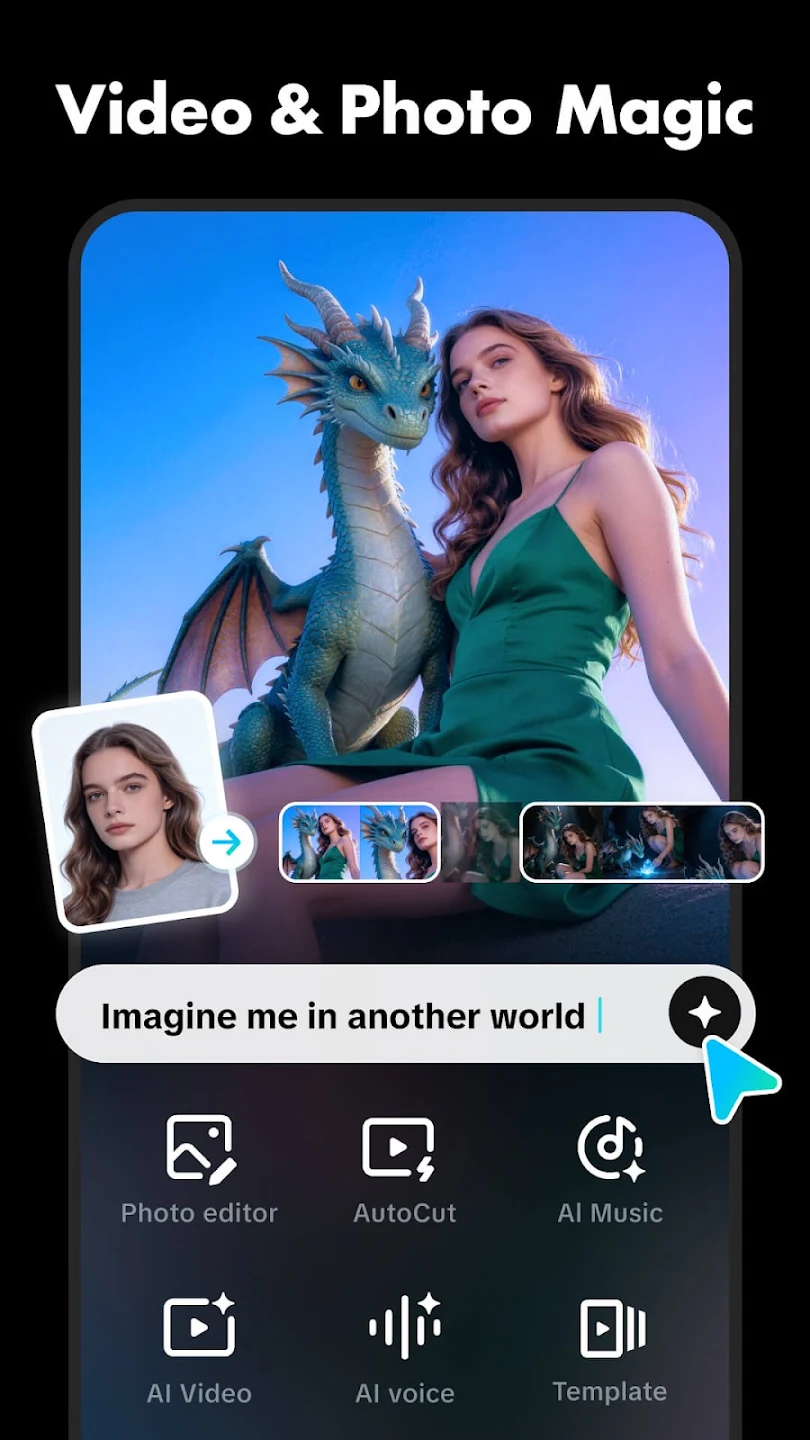
Artificial intelligence has fundamentally altered content creation workflows, and CapCut is at the leading edge of integrating AI natively into mobile editing. Rather than forcing users to export files to third-party web tools, CapCut executes high-end AI processing right inside the application timeline.
Standout AI features include:
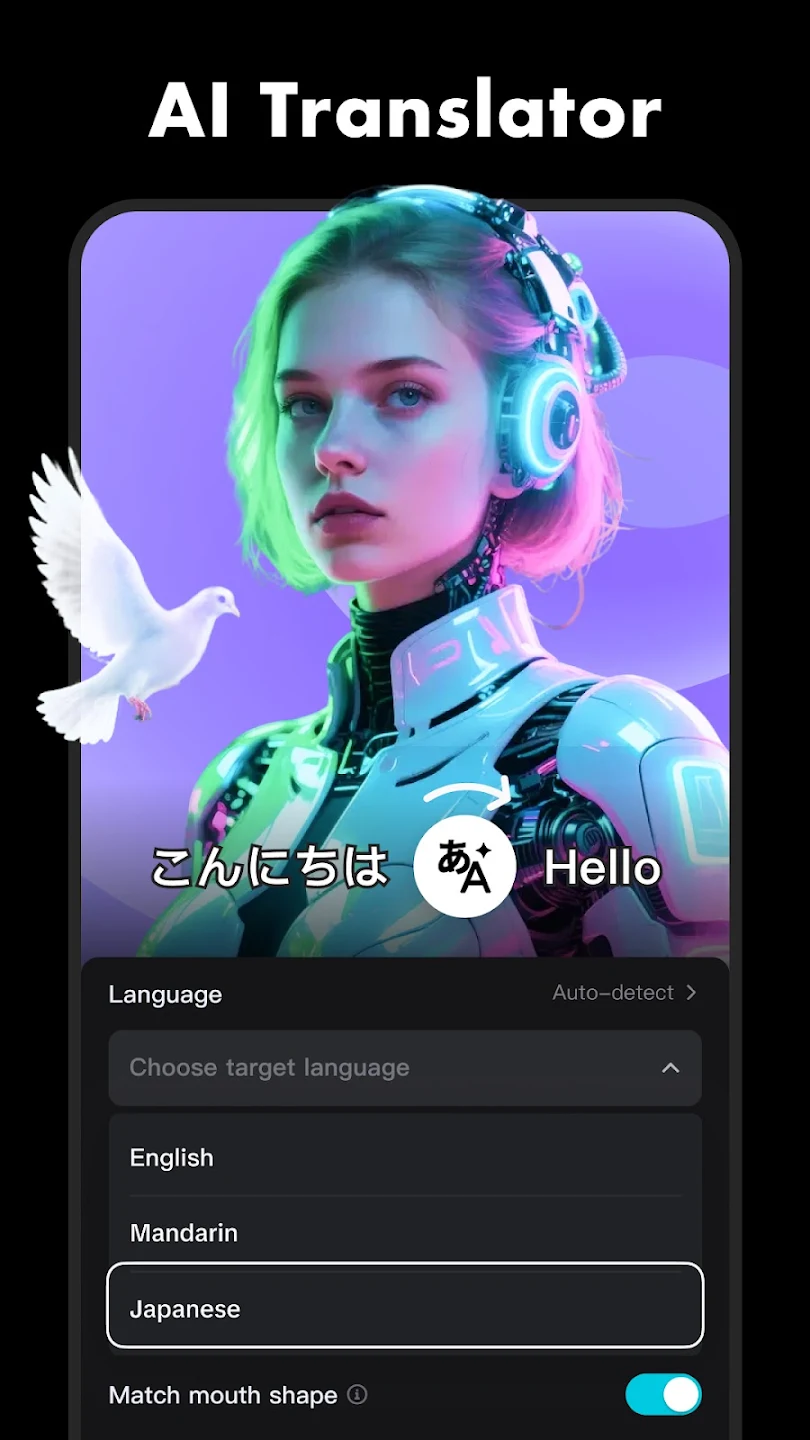
- Auto Captions and Subtitles: CapCut transcribes speech to text in dozens of foreign languages with high accuracy. The app automatically aligns words to audio timestamps, allowing creators to apply animated caption styles, custom typography, and dynamic highlighting with a single tap.
- Smart Background Removal (Cutout): Eliminate video backgrounds without a green screen. The AI recognizes human bodies and key objects, cleanly removing complex backdrops so you can place subjects anywhere.
- Text-to-Speech and AI Voiceover: Convert typed script directly into natural-sounding voiceovers. Choose from dozens of synthetic voices, accents, and character soundscapes to narrate videos without using a microphone.
- AI Body Effects and Retouching: Apply real-time face smoothing, facial feature adjustments, body shape refinement, and automated makeup overlays to ensure talking-head videos look polished and professional.
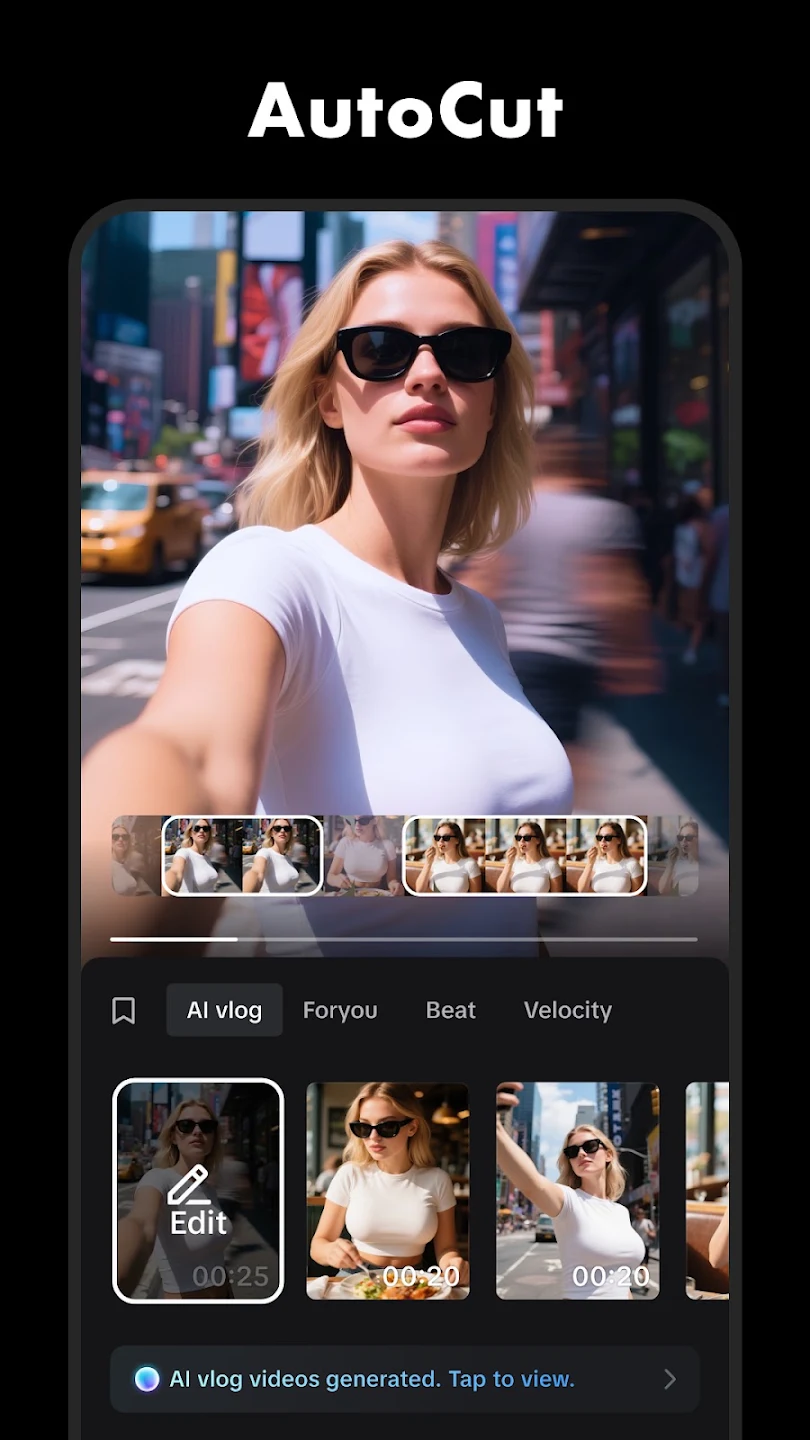
- Auto-Velocities and Beat Detection: Automatically mark audio waveforms at drum hits or tempo shifts, allowing the app to snap video cuts directly to the background music automatically.
Photo Editing Capabilities within CapCut
While known primarily for video, the app's official name—CapCut: Photo & Video Editor—highlights its dual utility. CapCut incorporates a robust dedicated photo editor tailored for creating thumbnails, social graphics, promotional posters, and profile pictures.
Key image editing capabilities include:
- One-Tap Portrait Cutout: Isolate subjects from static images to build transparent PNG overlays or custom background composites effortlessly.
- AI Image Upscaling and Restoration: Enhance low-resolution photographs, sharpen blurred textures, and remove digital noise using automated AI enhancement models.
- Collage and Graphic Templates: Access pre-designed layout templates optimized for Instagram Stories, TikTok thumbnails, and e-commerce product banners.
- Advanced Color Adjustments: Fine-tune exposure, contrast, highlights, shadows, saturation, HSL color channels, and color wheels directly on still imagery.
CapCut Free vs. CapCut Pro: Is the Subscription Worth It?
One of CapCut's initial selling points was its astonishingly generous free tier. Unlike many competitors, CapCut allows free users to edit full-length projects, access keyframes, apply basic transitions, generate subtitles, and export high-definition 1080p and 4K videos at 60fps without forced watermarks.
However, ByteDance has expanded CapCut Pro—its paid subscription service offered monthly or annually. While the free version remains functional for casual creators, CapCut Pro unlocks high-tier advantages:
- Exclusive Pro Effects and Transitions: Access premium visual filters, advanced 3D text templates, cinematic light effects, and trending Pro overlays.
- Advanced AI Features: Cloud-powered AI voice cloning, high-end motion tracking, advanced noise reduction, vocal isolation, and long-form auto-captions with translation are tied to the Pro plan.
- Cloud Storage Expansion: Store multi-device project backups and media assets on CapCut’s cloud space, allowing seamless editing handoffs between mobile devices and desktop computers.
For casual social media posters, the free tier provides more than enough utility. However, for full-time content creators, commercial marketers, and agencies, CapCut Pro offers tremendous value for a low monthly cost.
Pros and Cons of CapCut: An Unbiased Evaluation
To deliver an honest review, it is necessary to weigh CapCut’s impressive strengths against its remaining pain points.
Major Advantages:
- Intuitive Multi-Track Editing: Exceptionally easy to learn for beginners while maintaining high speed and precision for advanced editors.
- No Watermark on Free Exports: Unlike competitors, free exports carry no forced watermarks (the ending brand clip can simply be deleted from the timeline).
- Best-in-Class Auto Captions: Highly accurate speech recognition saves hours of manual subtitle typing.
- Seamless Social Media Integration: Direct export presets and viral templates built specifically for TikTok, Instagram Reels, and YouTube Shorts.
- Cross-Platform Synchronization: Projects sync effortlessly across mobile apps, web browsers, and desktop versions.
Noteworthy Limitations:
- Increasing Number of Gated Pro Features: Popular tools that were once completely free are periodically moved behind the Pro subscription paywall.
- Resource Intensive on Older Hardware: Heavy multi-track projects with 4K footage and multiple AI effects can cause lagging, heating, or battery drain on budget mobile devices.
- Dependence on Internet Connectivity: Many AI tools, text-to-speech generators, and trend effects require an active internet connection to process.
Pro Tips to Maximize Your Workflow on CapCut
If you want to speed up your editing workflow and produce higher quality videos using CapCut, implement these expert strategies:
- Utilize the Audio Extraction Tool: Import any trending video from social media into your timeline and use "Extract Audio" to instantly rip the background soundtrack for your own edit.
- Customize Text Styles & Import Fonts: Don't rely solely on stock presets. Import custom typography (.OTF or .TTF files) to align your video captions perfectly with your personal or business branding.
- Leverage the Web and Desktop Versions: For complex projects requiring extensive color grading or heavy multi-track audio layering, transfer your cloud project to the CapCut desktop app for precision editing with a mouse and keyboard.
- Master Speed Curves over Linear Speed Changes: Avoid flat speed adjustments. Use custom velocity curves to build dynamic momentum into action shots, sports highlights, and dance clips.
Final Verdict: Should You Download CapCut?
CapCut: Photo & Video Editor remains the undisputed champion of mobile content creation apps. By combining traditional timeline editing, advanced keyframing, multi-track masking, robust photo editing, and powerful AI tools into one cohesive, accessible interface, ByteDance has crafted an editing powerhouse that caters to both novices and seasoned video pros.
Whether you are crafting quick TikTok clips, polishing high-resolution YouTube Shorts, editing promotional business ads, or designing social graphics, CapCut is an absolute must-have app that deserves a top spot on every creator's mobile device.